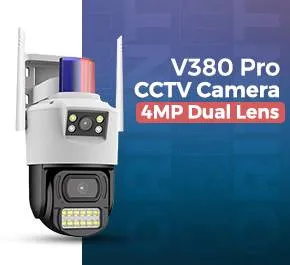
In a country where power outages, theft, and security concerns are part of daily life, being able to check your home, shop, or office cameras from anywhere gives real peace of mind. If you’re stuck in traffic, traveling to, or even abroad for work, knowing you can pull up a live feed on your phone in seconds changes everything. The good news? Modern systems make it surprisingly simple to watch a security camera online without needing to be physically present.
Go through this page to learn how to view a CCTV camera from anywhere. Scroll down to read more.
Basic Requirements Before You Start
Before learning how to view CCTV remotely, make sure these three things are in place:
- A stable internet connection is required at the camera location, with upload speeds of at least 2 to 4 Mbps per camera for smooth streaming.
- A DVR/NVR or smart IP camera that supports remote viewing
- A smartphone (Android or iPhone) or a laptop
If your current system is an old analog one without internet support, don’t worry, you can still upgrade affordably instead of replacing everything.
Method 1: Using Cloud-Based Smart Cameras
This is by far the most popular method in Pakistan right now.
Brands like IMOU, Hikvision Connect, Ezviz, and TP-Link Tapo let you skip complicated router settings altogether. You just:
- Download the brand’s app (IMOU Life, Hik-Connect, EZVIZ, Tapo, etc.)
- Scan the QR code with the camera.
- Connect it to your home/office Wi-Fi.
- Create an account, and you’re done.
Within 5 minutes, you can live stream CCTV from your phone from anywhere in the world: no port forwarding, no static IP, no headache.
Method 2: Traditional DVR/NVR with P2P Connection
Most shops and homes still use 4-channel, 8-channel, or 16-channel DVR/NVR systems. Luckily, almost every new DVR sold offline or online includes free P2P remote viewing.
Here’s precisely how to connect CCTV to a mobile using P2P:
- To set up your DVR/NVR system, start by recording the serial number or scanning the QR code printed on the device.
- Next, download the appropriate app recommended by your installer; standard options include gCMOB, iCMOB, XMEye, V380 Pro, and RXCamView.
- Open the app and select “Add Device.” You can either scan the QR code or manually enter the serial number.
- After that, input the default username, typically “admin,” along with the password you set during the installation.
- Finally, tap on “Live View” to access your camera feed.
That’s it. You now have access to a CCTV camera from anywhere, via mobile data or Wi-Fi.
Method 3: Port Forwarding
Some older DVRs or office setups still need manual port forwarding. This method works, but requires access to your router settings:
- To access your PTCL/Fiber router, start by logging in through your web browser using the IP address, which is typically 192.168.1.1.
- Once logged in, navigate to the Port Forwarding or NAT section of the settings menu.
- Here, you will need to forward the HTTP port (typically 80 or 443) and the RTSP port (usually 554 or 8554).
- Next, input the local IP address of your DVR, such as 192.168.1.100.
- To connect remotely, retrieve your public IP address from whatismyipaddress.com.
- Finally, in your mobile application, select “IP/Domain” instead of P2P, then enter your public IP address and the appropriate port to access your DVR securely.
Warning: Your public IP changes with every router restart unless you request a static IP from PTCL or StormFiber.
How to Make Remote Viewing Reliable in Pakistan
Internet and electricity issues are real here, so follow these practical tips:
- To ensure your DVR/NVR remains functional during load shedding, always connect it to a reliable UPS.
- Consider using a 4G mobile hotspot as a backup internet solution in case your fiber connection fails.
- It’s crucial to change default passwords right away, as hackers actively scan Pakistani IP addresses daily.
- Enable motion detection alerts to receive notifications only when actual events occur.
- Test remote access capabilities while connected to mobile data, not just Wi-Fi, before fully relying on the system.
Best Apps Pakistanis Actually Use in 2025
- gCMOB / iCMOB: Most widely used for Chinese DVRs
- Hik-Connect: For Hikvision systems
- IMOU Life: Excellent for budget-friendly CCTV Camera with clear night vision
- XMEye / V380 Pro: Popular for Wi-Fi bulbs and mini cameras
- TinyCam Pro (paid): If you want to combine multiple brands in one app
All the CCTV cameras from renowned brands that utilize the apps as mentioned above are available at Orient CCTV.
Troubleshooting Common Problems
When you encounter the message “Can’t connect outside my Wi-Fi,” it’s often due to failed port forwarding or disabled P2P settings, so re-scan the QR code again to troubleshoot.
If you see “Loading… stuck at 99%,” this typically indicates weak upload speeds; it’s a good idea to ask someone at the location to restart both the router and the DVR for a better connection.
For a “Black screen at night,” the issue could be related to an infrared cut filter malfunction or the absence of IR LEDs, which is especially common in very inexpensive cameras.
Final Thoughts
Thanks to affordable data plans and better apps, there’s no reason in 2025 to be stuck wondering what’s happening back home or at your business. If you choose a simple cloud camera or set up your existing DVR properly, you can now watch a CCTV camera from anywhere in Pakistan with just a few taps.
If you’re looking for reliable, easy-to-connect cameras with crystal-clear remote viewing, check out the latest range at our website. We carry original IMOU, Dahua, and Hikvision units with proper warranty and free setup guidance. Curious about the current IMOU Camera price in Pakistan? Check out our website today. We’ll beat any genuine quote and help you go live on your phone the same day.