How to Test Your CCTV System After Installation
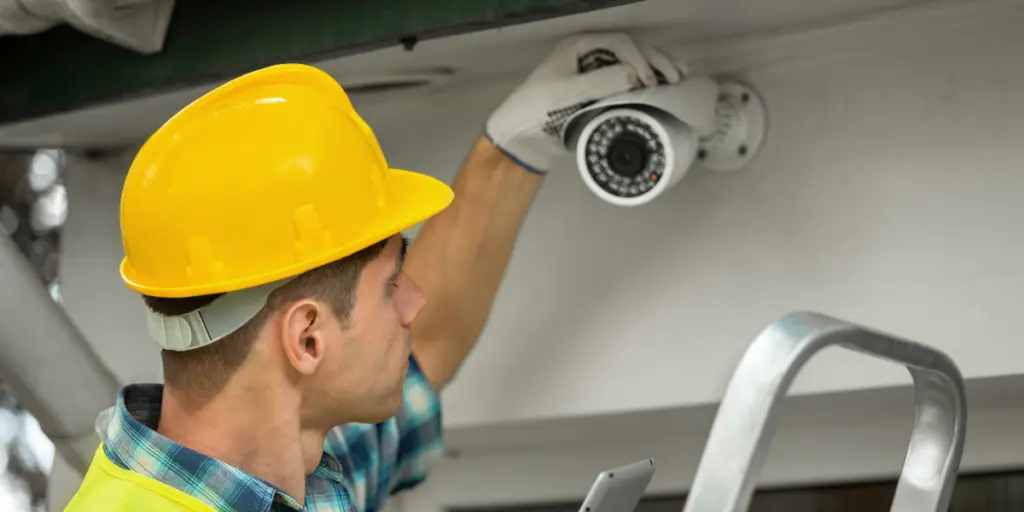
Getting a CCTV system installed feels like a big relief. Cameras are mounted, cables are run, and the app is showing a live feed on your phone. But here’s the thing: having cameras up on the wall doesn’t automatically mean your property is protected. A camera that looks fine from the ground could still record blurry footage, miss a blind spot near your gate, or fail once the sun goes down. Testing your setup after installation isn’t optional; it’s essential to confirm your system works properly.
If a security company handled the installation or you set it up yourself, a proper testing routine gives you peace of mind and helps you catch gaps before something goes wrong. Let’s walk through exactly how to check everything, one part at a time.
Why Testing Your CCTV System After Installation Matters?
A CCTV system’s usefulness depends on its footage. Loose cables, wrong angles, poor lighting, or weak Wi-Fi can undermine a good installation. Testing right after setup helps you catch these problems early, while the installation is still fresh in your mind, rather than months later when you’re trying to pull footage of an actual incident.
For homes and businesses across Pakistan, where power fluctuations and connectivity issues are fairly common, this step becomes even more important. Thorough testing now can prevent frustrating surprises later.
How to Test CCTV Cameras After Installation: The Basics
Before diving into video quality or night vision, start with the fundamentals. This is the foundation for properly testing CCTV cameras after installation, and skipping it often leads to confusion later.
Check the Physical Setup First
Walk around your property and inspect each camera individually. Look at the mounting bracket, the cable connections, and the direction the lens is pointing. A camera that’s slightly tilted or partially blocked by a tree branch, wall, or signboard won’t give you the coverage you’re paying for.
How to Check if a CCTV Camera Is Working
After setting up the physical components correctly, the next step is to verify if the CCTV camera functions properly. Here’s a simple way to test a CCTV camera without using any technical equipment:
- Look for a status LED on the camera; most models show a steady or blinking light once powered and connected.
- Open the CCTV app or software and confirm each camera appears as “online,” not “offline” or “connecting.”
- Wave your hand in front of the lens and check whether the live view on your screen updates instantly.
- Trigger motion detection, if it’s enabled, and confirm you receive an alert or notification.
If a camera shows as offline or the feed keeps freezing, it usually points to a power, cabling, or network issue that needs attention before you move forward.
How to Test CCTV Video Quality
Picture quality is where many installations fall short, even when everything else seems to be working fine. Knowing how to test CCTV video quality properly means looking beyond just “can I see something” and checking whether the footage is genuinely usable.
Resolution and Clarity Checks
Zoom into the live feed and check whether faces, number plates, or other fine details stay clear rather than turning pixelated. Compare the picture across all your cameras, since resolution settings can sometimes differ if they weren’t configured consistently during installation.
Camera Angles and Blind Spots
Walk the full perimeter of the covered area and note any spots where you are entirely out of view. Doorways, gates, and boundary walls are common blind spots that get missed during initial placement.
- Check for overlapping coverage between neighboring cameras.
- Confirm entry and exit points are fully visible, not just partially framed.
- Adjust zoom or focus settings if the image looks soft or slightly out of focus.
How to Test CCTV Night Vision
Daytime footage looking sharp doesn’t guarantee anything about performance after dark. Learning how to test CCTV night vision is a separate step that many people overlook, only to find the footage nearly useless during an actual nighttime incident.
What to Look for After Dark
Once it’s dark outside, open the live feed again and check the following:
- If the image switches automatically to black-and-white infrared mode or stays in color with supplemental lighting.
- If faces and movement remain distinguishable, rather than just visible as vague shapes.
- If there’s excessive glare coming from nearby streetlights, reflective surfaces, or glass.
- If the infrared range genuinely reaches the areas you need covered, since this can vary noticeably between models.
If you’re considering flexible outdoor coverage for spots where running a cable isn’t practical, an EZVIZ battery-powered camera is worth a look for its independent power setup and straightforward app-based monitoring. We can help you select and configure the right camera models for your specific property layout.
Testing Recording and Storage
A system that streams a live feed but doesn’t record properly is only doing half its job. Check that footage is actually being saved by reviewing the playback timeline rather than relying on the live view alone.
Scroll back through the recorded footage on the timeline and confirm it plays continuously without unexplained gaps. Missing parts of recording typically signal storage, power, or configuration problems needing fix before system use.
Checking Remote Access and Mobile Alerts
Most CCTV systems today are managed through a mobile app, so confirming this works properly matters just as much as checking the cameras themselves. Log out and back in to the app, switch from Wi-Fi to mobile data, and confirm that you can still pull up live feeds and recorded clips without noticeable delays.
CCTV System Testing Checklist
Running through a full checklist helps make sure nothing slips through the cracks. Here’s a simple CCTV system testing checklist you can follow camera by camera:
| Test Area | What to Check |
| Physical Mounting | Camera angle, stability, obstructions |
| Power and Connectivity | Status LED, app connection status |
| Live View | Image updates in real time |
| Video Quality | Clarity of faces, plates, and fine detail |
| Coverage | No blind spots at entry or exit points |
| Night Vision | Visibility and clarity after dark |
| Recording | Continuous footage without gaps |
| Remote Access | App login and playback from outside the network |
| Alerts | Motion detection notifications received |
Troubleshooting Common Issues After Installation
Even with a careful installation, a few common issues tend to surface once you start testing thoroughly.
Cabling and Connection Problems
Loose connectors, damaged cables, or poor crimping are frequent culprits behind flickering feeds or cameras that randomly drop offline. Reseating connections or replacing a damaged section of cable often resolves this quickly.
Weak or No Signal
If a camera struggles to stay connected, distance from your router or NVR, along with physical obstructions like thick walls, could be interfering with the signal. Repositioning the router or adding a signal extender can help stabilize the connection.
Quick Fixes to Try First
- Restart the DVR, NVR, or router before assuming a hardware fault.
- Check that all cable connectors are firmly seated at both ends.
- Confirm the camera’s power supply is stable and undamaged.
FAQs
1. Do I need any special tools to test my CCTV cameras after installation?
No, most testing can be done using the camera’s mobile app, along with a visual walkthrough of the property. Tools like a multimeter or cable tester are typically only needed if you suspect a wiring fault.
2. Why does my camera look clear on the live feed but blurry on the app?
This usually comes down to bandwidth or resolution settings that differ between local viewing and remote streaming. Checking your app’s stream quality setting often resolves this.
3. What should I do if a camera keeps going offline?
Frequent disconnections usually point to a weak network signal, loose cabling, or a power supply issue. Reseat connections and check signal strength near the camera as a first step.
4. Can I test CCTV night vision without waiting until it’s actually dark?
Some cameras let you manually switch to night mode in the app, giving you a preview of infrared performance in advance. That said, checking performance after dark still gives the most accurate picture.
5. How often should I re-test my CCTV system after the initial setup?
Periodic retesting helps confirm that everything continues to work as expected, especially after power outages, network changes, or seasonal weather shifts that can affect camera performance.
Final Thoughts
Testing your CCTV system after installation isn’t just a formality; it determines whether your setup will protect you when it matters most. From checking video clarity to confirming night-vision performance to reviewing your recordings, each step helps ensure your CCTV camera setup performs day and night reliably.
If you’d rather have professionals handle testing and finetuned, we offer the expertise to ensure your system is fully functional from day one!


Lets's Get Social
We are a dedicated professional company that deliver high-quality cameras all over Pakistan

Shariq Tahir
Share On
Related Post